The Problem with Locked PDFs
You have an important PDF — maybe a bank statement, a salary slip, a legal contract, or a government certificate — and you just need to print it, copy a line of text, or edit a field. You click Print. Nothing happens. You click Copy. Greyed out. You try to open it and a password dialog appears.
This is one of the most frustrating experiences in everyday digital life. Locked PDFs are everywhere — sent by banks, HR departments, insurance companies and government portals — and most people have no idea how to deal with them.
The obvious solution seems simple: search for an "unlock PDF online" tool. But here is where a second, more serious problem appears.
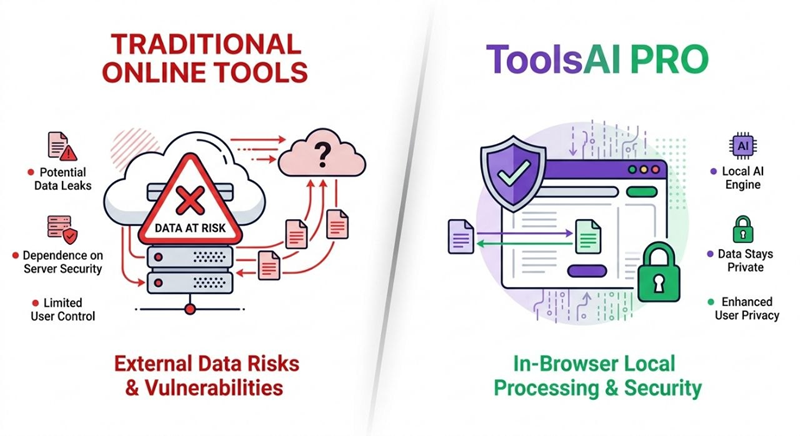
Most free online PDF tools — including some very popular ones — upload your file to a remote server for processing. When your PDF contains bank account numbers, salary figures, Aadhar details, legal information or medical records, uploading it to an unknown server is equivalent to handing that data to a stranger. Server breaches, unauthorised data retention and third-party data sharing are real risks.
This is exactly why ToolsAI Pro was built differently. Our PDF Unlocker processes your file 100% locally in your browser — the file never leaves your device, ever.
Understanding PDF Security — What Type of Lock Does Your PDF Have?
Before you unlock a PDF, it helps to understand what kind of protection it actually has. There are two completely different types of PDF security, and they work very differently.
🔒 Type 1: User Password (Open Password)
A User Password — also called an Open Password — prevents anyone from even viewing the PDF without entering the correct password first. When you try to open the file, a dialog box appears immediately asking for a password. Without the correct password, the file cannot be opened at all.
🔐 Type 2: Owner Password (Permissions Restrictions)
An Owner Password — also called a Permissions Password — is completely different. With this type of protection, the PDF opens and displays normally. However, certain actions are disabled: the Print button is greyed out, the Copy function does not work, or editing is blocked.
This is the most common type of PDF restriction. Many bank statements, payslips, insurance documents and government certificates use Owner Passwords to prevent casual editing — but the file still opens without any password prompt.
| Feature | User Password | Owner Password |
|---|---|---|
| Can you open the file? | ❌ No — password required | ✅ Yes — opens freely |
| What's blocked? | Everything — entire file is locked | Print, edit, copy text, annotations |
| Most common in? | Sensitive reports, personal documents | Bank statements, payslips, certificates |
| ToolsAI Pro can unlock? | ✅ Yes — if you know the password | ✅ Yes — often without any password |
If your PDF opens normally but you cannot print or copy text, it has an Owner Password restriction. ToolsAI Pro can often remove this type of restriction without requiring you to enter any password at all.
Why ToolsAI Pro is Different — The Secure PDF Unlock Solution
There are dozens of online PDF tools. What makes ToolsAI Pro genuinely different is not a marketing claim — it is a technical architecture decision that has real, verifiable privacy consequences.
How to Unlock a PDF — Complete Step-by-Step Guide
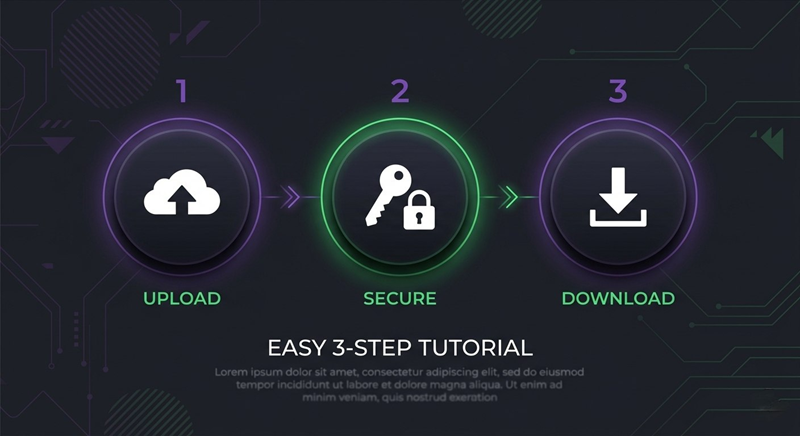
Unlocking a PDF with ToolsAI Pro takes less than 30 seconds from start to finish. Here is the complete process:
📤 Step 1: Drag & Drop Your PDF
Navigate to the ToolsAI Pro PDF Unlocker page. You will see a large drag-and-drop upload zone prominently displayed. Simply drag your PDF file from your file manager and drop it onto this zone — or click anywhere on the zone to open a file browser.
The tool immediately reads the file into your browser's local memory and automatically detects whether the PDF has a User Password, Owner restrictions, or is already unrestricted. A clear status indicator shows you exactly what type of protection has been detected.
🔑 Step 2: Enter the Password (Only if Required)
If the tool detects a User Password (an Open Password that prevents viewing), a password input field appears automatically. Enter the password you use to open the PDF. Use the eye icon to toggle visibility and verify your entry is correct — especially important with case-sensitive passwords.
If the tool detects only Owner Restrictions (printing/editing blocked, but no open password), the password field does not appear at all — you can proceed directly to Step 3 without entering anything.
Many Indian bank statements and salary slips use standard default passwords: your PAN number in UPPERCASE, your date of birth in DDMMYYYY format, the first 4 letters of your name + date of birth, or your registered mobile number. Check your document's email for a password hint before contacting support.
⬇️ Step 3: Click Unlock and Download Your File
Click the "Unlock PDF Now" button. A real-time progress bar shows the unlocking stages — reading the file structure, verifying the password, removing protection, and rebuilding the clean PDF. For most documents, this takes 1–5 seconds on any device.
Once complete, the result card shows a green success confirmation. Click "Download Unlocked PDF" to save the file. The output file has "_unlocked" appended to the filename so you can easily distinguish it from the original.
❓ Frequently Asked Questions
To decrypt AES-256, tools must upload your Aadhaar PDF to a powerful remote server. We deliberately refuse to do this. Uploading your Aadhaar card — which contains your biometric data, 12-digit UID number, address and date of birth — to an unknown server is an unacceptable privacy risk. We will never build this capability because your Aadhaar data is too sensitive to transmit over the internet to any server.
However — and this is important — if your PDF has only Owner Restrictions (printing blocked, editing blocked, copying blocked) without a User Open Password, our tool can often remove those restrictions without requiring any password at all. This covers the vast majority of restricted PDFs including most bank statements, payslips, insurance documents and certificates. Try uploading your PDF first; the tool will auto-detect which type of protection is present.
Owner Password (Permissions Password): Allows the PDF to be opened and viewed freely, but restricts specific actions such as printing, copying text, adding annotations, or editing form fields. This is the most common type of restriction found in everyday documents. The PDF opens normally but certain menu items are greyed out or disabled.
ToolsAI Pro handles both. For Owner Password restrictions, the tool can often remove them without any password input. For User Password protection, you need to enter the known password.
Conclusion — Unlock PDFs Privately, Securely and Free
Dealing with a locked PDF should not be stressful or risky. With ToolsAI Pro, the process is simple: upload your file, enter the password if needed, and download the unlocked version — all within your own browser, with zero data exposure.
The key differentiator is our 100% client-side architecture. When your document contains sensitive personal, financial or legal information, the only truly safe online tool is one that never puts your file "online" in the first place. That is exactly what ToolsAI Pro delivers.
If you found this guide helpful, explore our complete Tools Hub for more free, private browser-based tools — from PDF merging and compression to image conversion, QR code generation, password creation and more. All 20+ tools follow the same privacy-first architecture: your files and data never leave your device.