Why You Need to Merge Your ID Card Images
Every week, millions of users face the same frustrating situation. You have photographed both sides of your identity card perfectly. You have clear images of your document front and back. But the portal you are using — whether it is a bank's KYC form, a government scholarship portal, a job application system, or an insurance company's document submission page — asks for a single image containing both sides of the document.
This requirement is extremely common in digital verification ecosystems. Link portals, EPFO systems, income tax nodes, and banking structures all routinely ask for this combined format. The reason is simple — a single image is easier to file, verify and store than two separate images.
But how do you combine two separate photos into one image without a laptop, without Photoshop, without expensive software and without the risk of uploading your sensitive identity documents to an unknown website? That is exactly the problem ToolsAI Pro's free ID Card Merger solves.
Most online "ID card merge" tools work by uploading your images to a remote server for processing. This means your personal identity details travel to a server you know nothing about. Identity document data is among the most valuable assets for fraudsters. Server breaches, unauthorised data retention and data resale are genuine risks with server-based tools.
ToolsAI Pro is fundamentally different. Our ID Card Merger uses the HTML5 Canvas API — a browser-native technology — to combine your images entirely within your browser tab. Your identity documents never leave your device under any circumstances.
Where Is a Merged ID Card Image Required? — Real Use Cases
Here are the most common real-world situations where you will need a combined front-and-back ID card image:
For most official verification portals, the merged image file size must be under 200 KB to 500 KB. After merging, if the file is too large, use our free Image Compressor to reduce it without visible quality loss before uploading.
Why ToolsAI Pro ID Card Merger is Different
There are many online image merging tools. Here is exactly what makes ToolsAI Pro the safest and most capable choice for merging sensitive identity documents:
How to Merge Identity Documents Online — Complete Step-by-Step Guide
The entire process takes under 30 seconds. Follow these exact steps to merge your ID card images using ToolsAI Pro:
📸 Step 1: Upload the Front Side of Your ID Card
Go to the ToolsAI Pro ID Card Merger page. You will see two upload zones labelled "Front Side" and "Back Side". Click the Front Side zone to open your device's file browser, or drag and drop an image directly onto the zone from your file manager or desktop.
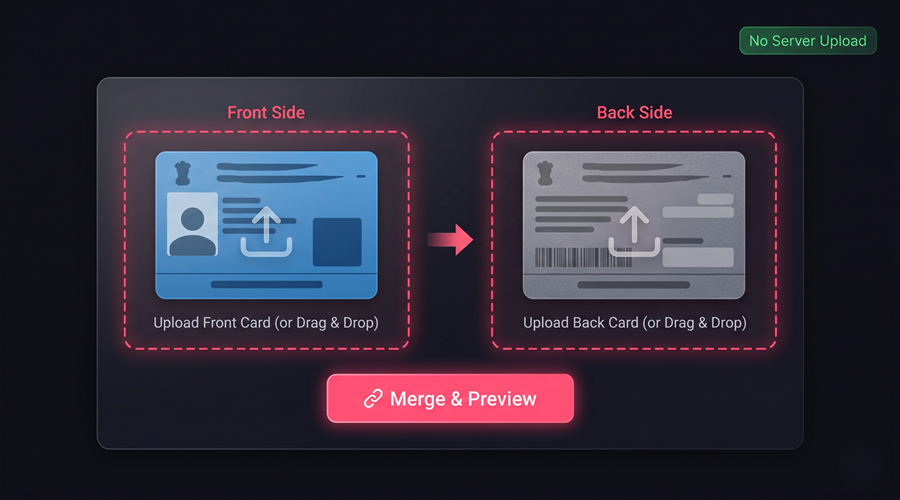
A thumbnail preview of the front image appears immediately inside the zone, along with the filename. This entire process uses your browser's FileReader API — the image is read into browser memory locally, with zero network activity. Mobile users can tap the zone to open their phone's gallery or camera.
🔄 Step 2: Upload the Back Side
Repeat the process for the Back Side zone. Upload the back photograph of your document container. Once both zones show thumbnail previews, the "Merge & Preview" button activates automatically.
If you uploaded the wrong image in either zone, simply click the zone again to select a different file — the previous image is replaced instantly without needing to refresh the page.
⚙️ Step 3: Configure Merge Options
Three dropdown menus give you precise control over the output:
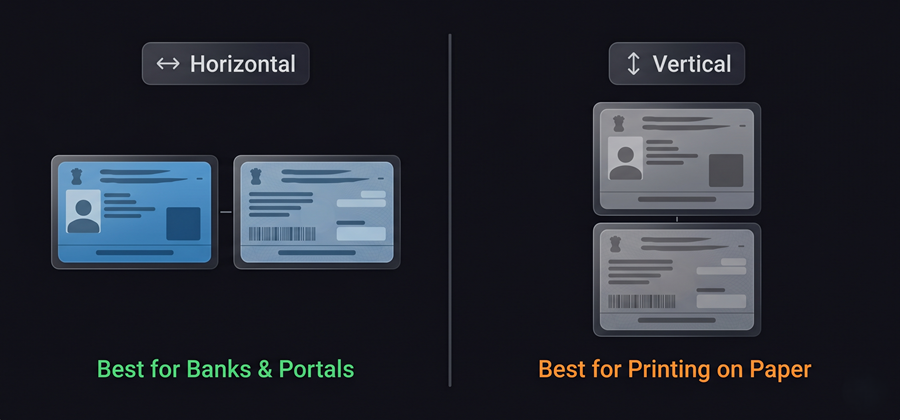
- Merge Direction: Choose Horizontal (side by side) or Vertical (top and bottom). Horizontal is the most common format accepted by banks and government portals.
- Download Format: Choose from JPEG (smallest file size — best for portals with size limits), PNG (best quality — no compression) or WebP shifted results.
- Output Canvas Size: Choose Auto-Fit (default — canvas is exactly the size needed for the two images) or A4 Sheet (places the merged image centred on a white A4 canvas at 300 DPI, perfect for printing).
Below the dropdowns, the Gap Slider lets you control the spacing between the two images from 0 px (no gap) to 80 px. A gap of 16–20 px is recommended for most use cases.
For portal uploads with file size limits: choose JPEG and keep the gap at 16px. For printing on paper: choose A4 Sheet canvas + PNG for maximum quality. For messaging or email sharing: choose JPEG or WebP for smaller file size without visible quality loss.
⬇️ Step 4: Merge, Preview and Download
Click the "🔗 Merge & Preview" button. The Canvas API renders both images onto a single canvas element in your browser — this takes less than one second on any device. The merged result appears as a live preview below the button.
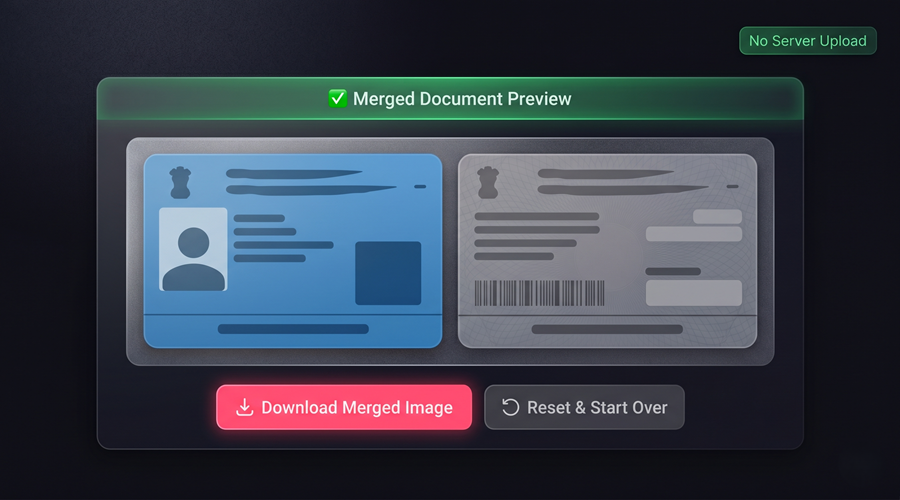
Check the preview carefully — verify that both sides are clear, correctly oriented and the gap looks right. If anything needs adjustment, change the settings and click Merge & Preview again. When you are satisfied, click "⬇️ Download Merged Image" to save the file to your device.
Choosing the Right Merge Direction — Horizontal vs Vertical
The correct merge direction depends on which portal or form you are submitting to. Here is a quick reference guide:
| Use Case | Recommended Direction | Reason |
|---|---|---|
| Bank KYC Portals | ↔️ Horizontal | Most banks display ID in landscape format |
| Government Portals | ↔️ Horizontal | Standard for official document combined views |
| Job Application Forms | ↕️ Vertical | Many HR portals prefer portrait orientation |
| Print on A4 Paper | ↕️ Vertical | Better use of A4 portrait page space |
| Online Message Share | ↔️ Horizontal | Easier to read on mobile screens |
| Insurance Claims | ↔️ Horizontal | Standard insurance document format |
Download Formats Explained — JPEG vs PNG vs WebP
ToolsAI Pro offers three output formats. Here is exactly when to use each one:
How the Merging Works — Technical Details
Understanding the technical process confirms that ToolsAI Pro's privacy claims are genuine. Here is exactly what happens when you merge ID card images:
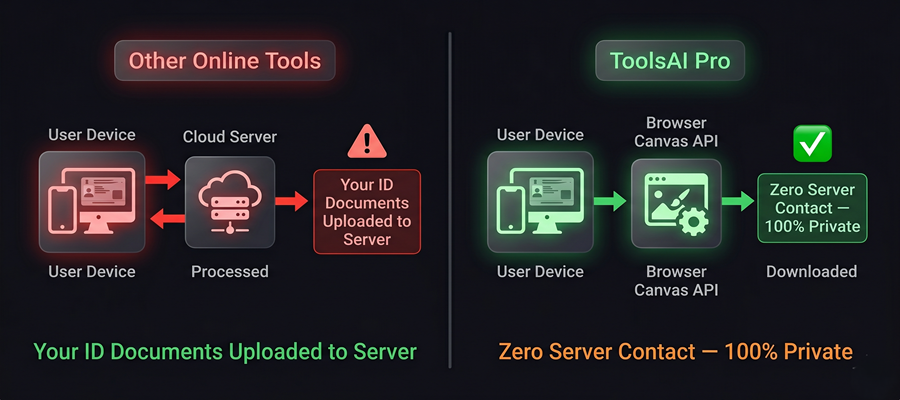
- FileReader API: Your browser reads each uploaded image file into a Data URL stored in browser RAM. Zero network activity occurs at this point — the files never leave your device.
- Image Object Loading: JavaScript creates HTML Image objects from the Data URLs. Each image's natural width and height are read to calculate the correct canvas dimensions.
- Canvas Sizing: For horizontal merge, canvas width = front width + gap + back width, canvas height = maximum of both heights. For vertical, canvas height = front height + gap + back height, canvas width = maximum of both widths.
- A4 Scaling (if selected): A 2480×3508 px white canvas is created. The merged image is scaled to fit within the A4 boundaries while maintaining aspect ratio, then centred on the white canvas.
- Canvas Export: The canvas calls
toDataURL(mime, quality)to export the final image as a Blob URL, which your browser downloads directly — no server involved at any stage.
Open Chrome DevTools (F12 → Network tab → clear). Upload both images and click Merge. You will observe zero outbound network requests throughout the entire process. This is not a privacy claim — it is a verifiable technical fact that any developer can independently confirm.